fripos.app › English › What's new
"Don't print" for menu items, splitting a bill item by item, and full tax invoices are now in FriPos for every restaurant. They work now in the browser, and in the Android app from version 258. Google Play updates the app automatically.
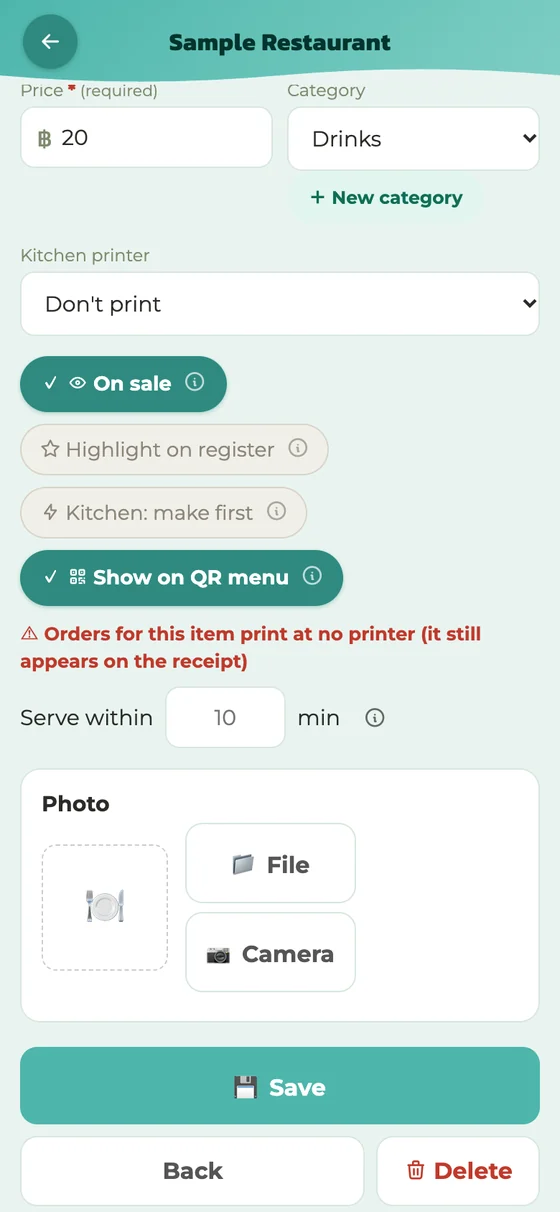
In the admin screen, open a menu item, choose "Don't print" under "Kitchen printer" and tap Save. Orders for that item then print at no printer, but the item still appears on the customer's receipt. To change many items at once, tap "Printer" on the menu screen, choose "Don't print" and tap the items.
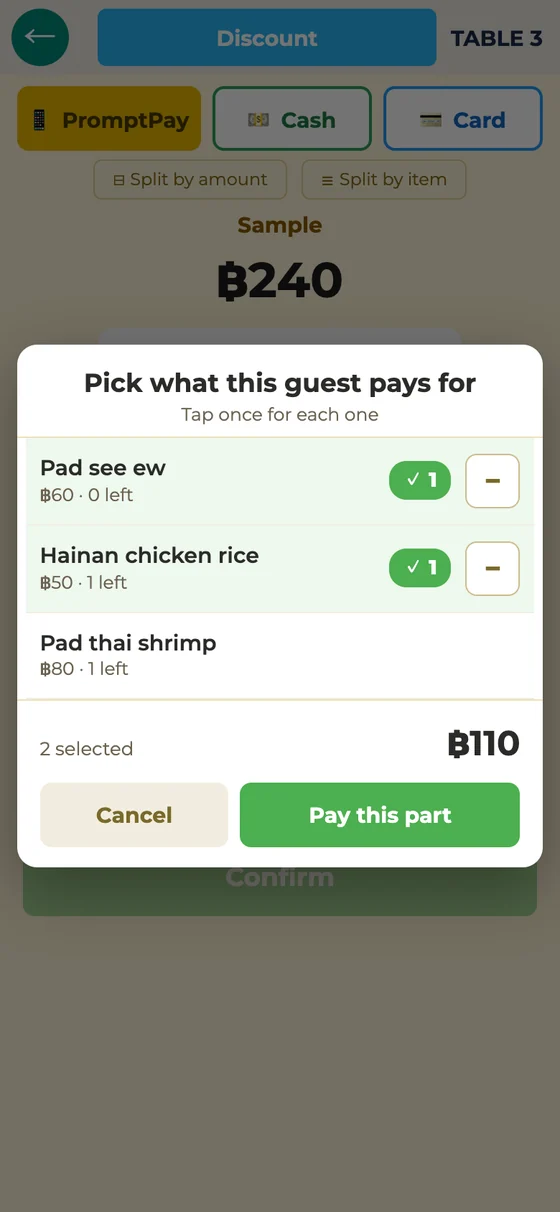
On the payment screen, tap "Split by item", tap the items one guest is paying for (one tap for each), and tap "Pay this part". That guest pays only for those items, and their receipt shows only those items. The screen then goes back to the rest of the bill for the next guest, and the last guest can simply pay the rest. Service charge and tax are added to each part. The button next to it, "Split by amount", still splits the bill by amount.
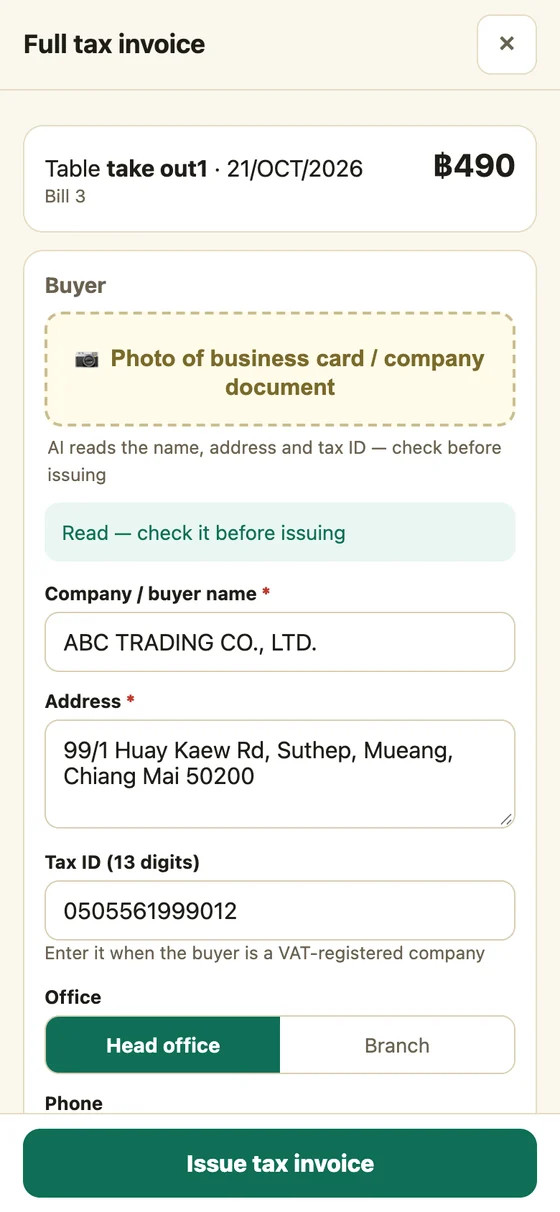
For VAT-registered shops on the Starter plan. Open a paid bill (on the register: ⋮ > Today's orders, or in the admin screen: Receipt records) and tap "Full tax invoice". Take a photo of the customer's business card or company document, and FriPos's AI fills in the company name, address, Tax ID, head office or branch, and phone. Check them before issuing (you can also type them yourself), then tap "Issue tax invoice".
Each invoice gets a running number for the month (for example IV2610-0001), and the VAT is calculated from the bill. It prints on the receipt printer from the Android app, and it can be opened as an A4 PDF to print or save. If something was wrong, cancel it with a PIN and issue a new one: the cancelled number stays on record as cancelled, and the new invoice keeps the original date and states which number it replaces. Your registered business name, address and branch are set in the admin screen under Settings.
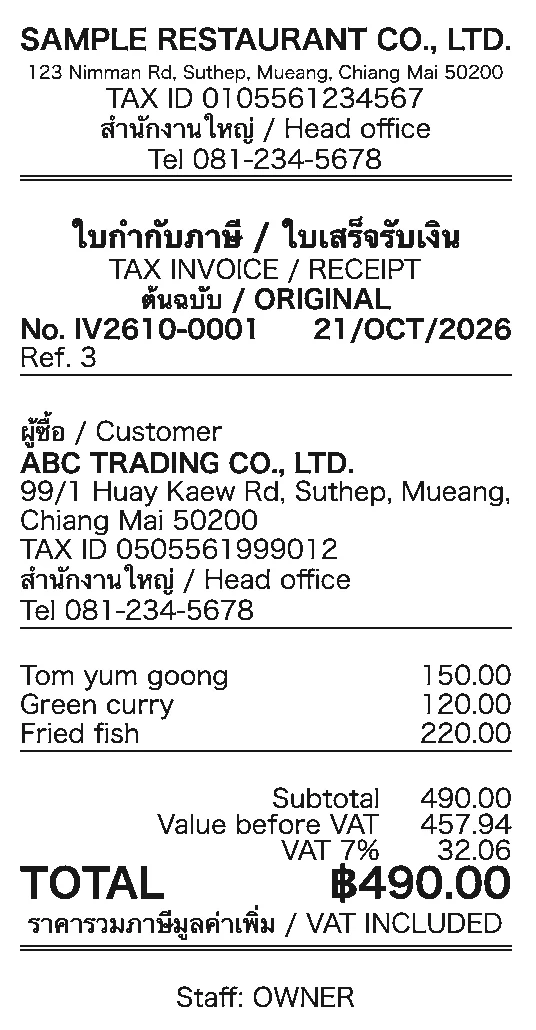
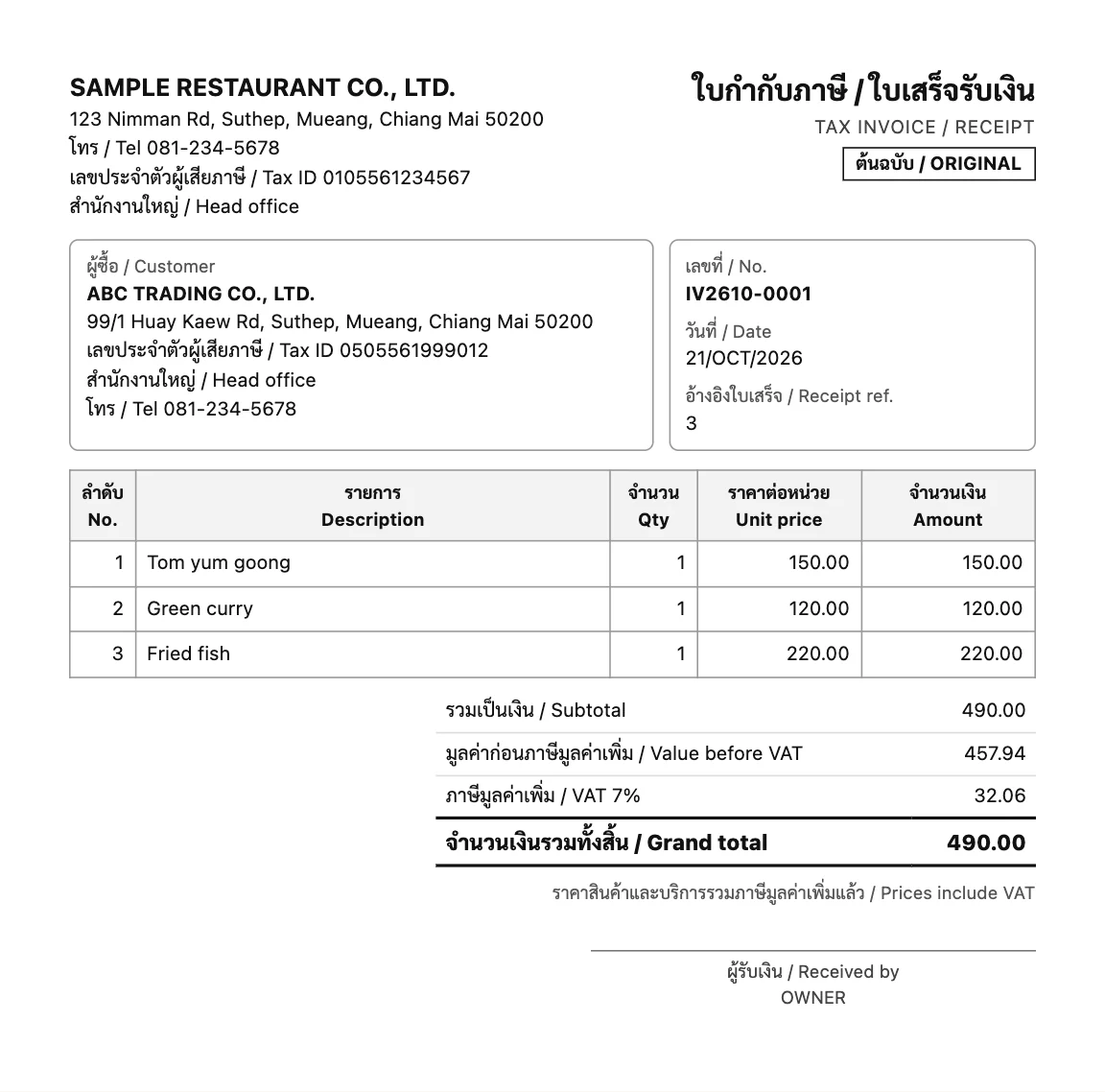
About Thai rules: the full tax invoice shows the items listed in Section 86/4 of the Revenue Code: the words "Tax Invoice" (ใบกำกับภาษี), your business name, address and Tax ID with head office or branch, the buyer's name and address (and the buyer's Tax ID and head office or branch when you enter them), a running number, the date, each item with its quantity, unit price and amount, and the VAT shown separately from the price. Everything on it is printed by FriPos, so nothing needs to be written by hand. Cancelling and reissuing follow the Revenue Department's procedure: a new number, the same date as the original, and a note of the number it replaces.
Questions: the FriPos LINE chat https://lin.ee/sJ6Ep6o
